

Pointing a Web2 domain to a VPS (Virtual Private Server) is a common way to publish a website, application, or service under your own domain. Depending on your provider, this is done either by pointing DNS records to a server IP or by following the provider’s required DNS setup (for example, specific CNAME records or nameserver changes).
This guide explains how DNS resolution works, which records you need, and how to point your Web2 domain using Freename’s DNS panel.
1. Prerequisites
Before you start, make sure you have:
- A Web2 domain registered with Freename (e.g. yourdomain.com)
- A VPS with a public IP address
- IPv4 (e.g. 203.0.113.10)
- Optional IPv6 (e.g. 2001:db8::1)
- IPv4 (e.g. 203.0.113.10)
- Access to Freename’s DNS panel
- A web server installed on your VPS (Apache, Nginx, etc.)
No additional tools are required.
2. How Domain → VPS Resolution Works
When a user visits your domain:
- The browser queries DNS for your domain
- DNS returns the IP address of your VPS
- The browser connects directly to your server
- Your web server responds with the website or application
This mapping is done using A records (IPv4) and optionally AAAA records (IPv6).
3. Identify Your VPS IP Address
From your VPS provider dashboard or server console, locate:
- Public IPv4 address (most common)
- Optional: IPv6 address
Example:
IPv4: 203.0.113.10
IPv6: 2001:db8::1
You will use these values in the DNS configuration.
4. Add an A Record in Freename (IPv4)
4.1 Access the DNS Panel
- Log in to your Freename panel
2 Navigate to:
Portfolio → Domains → Manage → DNS
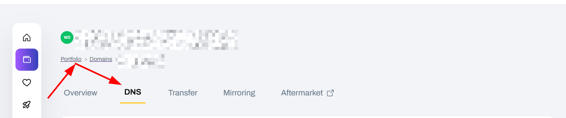
3 Select the domain you want to point to your VPS
4.2 Create the A Record
Add a new DNS record with the following values:
- Host / Name: @ (root domain)
- Type: A
- Value: Your VPS IPv4 address (e.g. 203.0.113.10)
- TTL: 300 or default
Save the record.
This points:
yourdomain.com → VPS IP
5. (Optional) Add an AAAA Record (IPv6)
If your VPS supports IPv6, you can also add an AAAA record.
- Host / Name: @
- Type: AAAA
- Value: Your VPS IPv6 address
- TTL: 300 or default
This allows IPv6-capable clients to connect directly.
6. Point the WWW Subdomain to Your VPS
Most websites should also respond to www.yourdomain.com.
Option 1: Add a CNAME Record (Recommended)
- Host / Name: www
- Type: CNAME
- Value: yourdomain.com
- TTL: 300 or default
This ensures www always follows the root domain.
Option 2: Add a Separate A Record
Alternatively, you can point www directly to the IP:
- Host / Name: www
- Type: A
- Value: Your VPS IPv4 address
Both approaches work, but CNAME is preferred for simplicity.
7. Configure Your Web Server (VPS Side)
DNS only routes traffic — your VPS must be configured to accept it.
On your VPS:
- Configure your web server (Apache / Nginx) with:
- ServerName yourdomain.com
- ServerAlias www.yourdomain.com
- ServerName yourdomain.com
- Ensure port 80 (HTTP) and 443 (HTTPS) are open
- Restart the web server after configuration
Without this step, DNS will resolve correctly but the website may not load.
8. DNS Propagation & Verification
DNS changes are not instant.
8.1 Check Propagation
You can verify DNS propagation using:
https://dnschecker.org/
- Select A
- Enter your domain
- Confirm the VPS IP appears globally
Propagation usually takes minutes, but can take up to 72 hours.
9. SSL Certificate (Important)
After DNS is pointing to your VPS, you should install an SSL certificate.
Common options:
- Let’s Encrypt (free)
- Cloudflare (proxy-based)
- Commercial SSL providers
Without SSL, browsers will show security warnings.
10. Common Issues & Troubleshooting
Website not loading
- VPS firewall blocking ports 80/443
- Web server not running
- Virtual host misconfiguration
DNS not resolving
- Wrong IP entered
- DNS not saved
- Propagation still in progress
WWW works but root doesn’t (or vice versa)
- Missing A or CNAME record
- Web server missing ServerAlias
FAQ
-
What DNS records do I need to point a Web2 domain to a VPS?
You need an A record to map your domain to the VPS IPv4 address, and optionally an AAAA record if you also want to support IPv6. -
How do I point the root domain (yourdomain.com) to my VPS in Freename?
In Freename’s DNS panel, create an A record with Host/Name = @, Type = A, Value = your VPS IPv4, and TTL = 300 (or default), then save. -
How should I configure the www subdomain (www.yourdomain.com)?
Recommended: add a CNAME with Host/Name = www pointing to yourdomain.com.
Alternative: add a separate A record for www pointing directly to your VPS IPv4. -
Why can DNS be correct but the website still doesn’t load?
DNS only routes traffic. Your VPS must have a web server configured with ServerName yourdomain.com and ServerAlias www.yourdomain.com, and ports 80 (HTTP) and 443 (HTTPS) must be open. Then restart the web server. -
How long does DNS propagation take and how can I verify it?
Propagation can take minutes but up to 72 hours. You can check it on dnschecker.org by selecting A, entering your domain, and confirming your VPS IP appears globally.