

Pointing your domain to a hosting provider is the step that allows your website to load when someone types your domain name. This process is done through DNS (Domain Name System) settings, and although the exact records vary depending on your hosting company, the workflow is always the same. Below is a simple guide to help you point your domain correctly, regardless of which hosting provider you use.
1. Before You Begin
Before making any DNS changes, you’ll need:
- An active hosting plan (e.g., Bluehost, Hostinger, GoDaddy Hosting, Namecheap Hosting, AWS, DigitalOcean, etc.)
- Your domain inside Freename (Web2 domains only; Web3 domains follow a different process)
- The required DNS records from your hosting provider
Important: Every hosting provider uses different DNS records.
Always check with your hosting support to confirm:
- Required A Records
- Required CNAME Records
- Whether a TXT verification record is needed
- Whether you also need MX records (only for email services)
2. The Most Common DNS Records for Website Hosting
A Records (IPv4 Addresses)
A Records point your domain to your hosting provider’s server IP.
You may receive one or multiple IP addresses like:
A @ 192.168.1.10
A @ 192.168.1.11
These tell the browser exactly where your website files are stored.
CNAME Records (Aliases)
CNAMEs are used to point subdomains to specific hostnames.
Common examples include:
CNAME www your-hosting-url.com
CNAME blog your-hosting-url.com
Almost every hosting provider requires at least a CNAME for “www”.
TXT Records (Verification / Authentication)
Some hosting providers require a TXT record to verify domain ownership before allowing your site to go live.
Example:
TXT @ site-verification=abcdefgh123456
This is used frequently by:
- Google Sites
- Cloudflare
- Wix
- Squarespace
- Webflow
3. How to Add These Records in Freename
- Log in to Freename
- Go to Portfolio → Domains → Manage → DNS
- Add the records provided by your hosting provider:
- A Record(s)
- CNAME Record(s)
- TXT verification (if required)
- Save the changes
Note: DNS changes may take between 5 minutes and 72 hours to fully propagate worldwide.
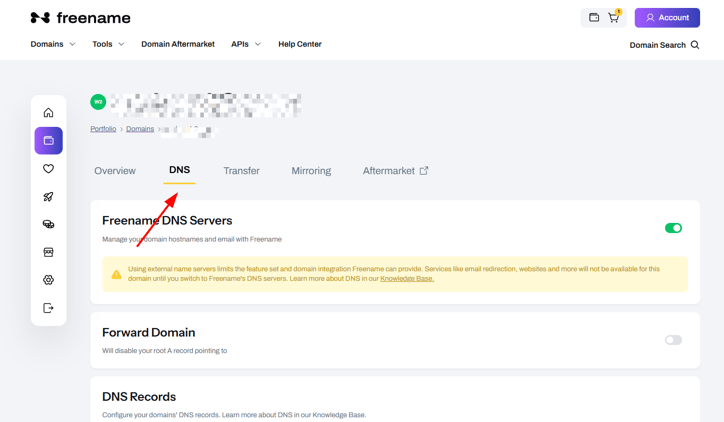
4. Additional Considerations
Nameservers vs DNS Records
Some hosting companies may tell you to update nameservers instead of individual records (e.g., for Cloudflare or some cPanel hosts).
If they ask for nameservers such as:
ns1.hostingprovider.com
ns2.hostingprovider.com
then you must replace Freename’s default nameservers with these.
Always confirm with your hosting support which method they require:
- Method 1: Point via DNS Records (A, CNAME, TXT)
- Method 2: Point via Nameservers
Only use the method recommended by your hosting.
5. Troubleshooting Tips
Website not loading?
Check:
- If the correct IP addresses were added
- If the “www” CNAME is configured
- If your hosting requires SSL (HTTPS) setup inside their dashboard
DNS still pointing to the old provider?
DNS propagation may still be happening.
You can check progress at:
https://dnschecker.org/
Hosting says “domain not verified”?
This usually means a TXT record needs to be added or corrected.
6. Summary
To point your domain to a hosting provider:
- Get your required DNS records from your hosting company
- Add A records, CNAME records, and possibly TXT verification
- Confirm whether nameservers need to be changed
- Wait for DNS propagation
Once your DNS settings are correct, your domain will load your website properly.
FAQ
- What does “pointing a domain to hosting” mean?
It means updating your DNS settings so your domain directs visitors to your hosting provider’s server where your website is stored. - Which DNS records do I usually need for a website?
Most setups need A record(s) for the main domain and a CNAME for www. Some providers also require a TXT record for verification. - Do I need to change DNS records or nameservers?
It depends on your hosting provider. Some require updating individual records (A/CNAME/TXT), while others ask you to replace nameservers (common with Cloudflare or some managed hosts). - How long do DNS changes take to work?
DNS updates can start working within minutes, but full worldwide propagation may take up to 72 hours. - My website isn’t loading, what should I check first?
Verify the A record IP(s), confirm the www CNAME is correct, and check if your host requires SSL/HTTPS setup or a TXT verification record.