

When you're ready to use Zoho Mail with your custom domain, the first step is to point your domain's DNS records to Zoho Mail’s servers. This ensures that your emails will be routed through Zoho's platform. Here's a step-by-step guide to help you set up your domain to work with Zoho Mail.
Step 1: Add MX Records
To point your domain's email to Zoho Mail, you'll need to configure your domain’s MX (Mail Exchange) records in the DNS manager. Here are the entries you need to add:
- First Entry (MX Type):
- Name: @
- Priority: 10
- Destination: mx.core.locaweb.com.brmx.zoho.com (or Default)
- Second Entry (MX Type):
- Name: @
- Priority: 20
- Destination: mx2.zoho.com
- TTL: 14400 (or Default)
- Third Entry (MX Type):
- Name: @
- Priority: 50
- Destination: mx3.zoho.com
- TTL: 14400 (or Default)
Once these records are added to your domain’s DNS settings, your emails will start being routed through Zoho’s mail servers.
Step 2: Authenticate Your Domain Using a TXT Record
Zoho Mail requires you to verify ownership of your domain by adding a TXT record to your domain’s DNS settings. Follow these steps to authenticate your domain:
1. Copy the Unique TXT Code
- Log in to the Zoho Mail Admin Console.
- Navigate to the Domains section on the left panel.
- If you've already added your domain, click on it from the list. If not, click + Add to add a new domain.
- In the domain verification section, choose the option "Add a TXT record to DNS" from the dropdown list.
- Copy the generated TXT value from the Zoho Mail Admin Console.
2. Add the TXT Record to Your Domain’s DNS Settings
- Log in to your Freename account
Go to Freename's website and log in to your account using your credentials. - Navigate to the DNS Manager
- From your dashboard, go to the Portfolio section.
- Select Domains from the left-hand menu.
- Click on the domain name that you want to update.
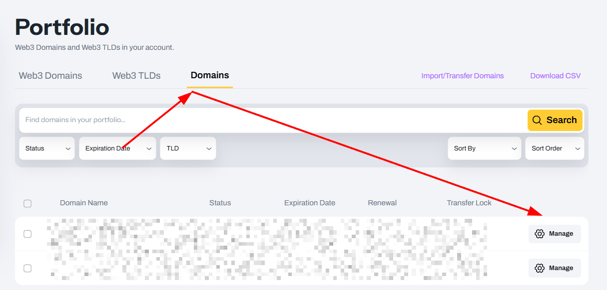
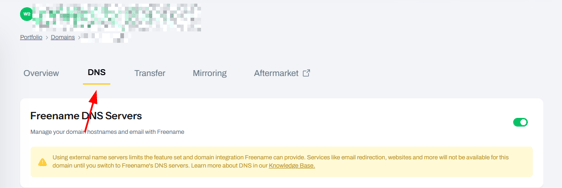
- Access the DNS Zone
- In the domain management page, find and click on DNS Records.
- This will take you to your DNS Zone where you can manage all the DNS settings for your domain.
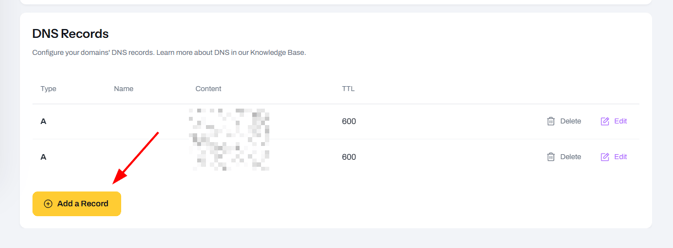
- Add a TXT Record
- Click on the Add Record button.
- From the dropdown menu, choose TXT as the record type.
- In the Name field, enter @ to indicate the root domain.
- In the Value field, paste the unique TXT value you copied from the Zoho Mail Admin Console.
- Set the TTL (Time to Live) to 14400 (or leave it as Default).
- Save the Record
Once you've entered the TXT record details, click on Save to add it to your DNS settings.
3. Verify the TXT Record
- Return to the Zoho Mail Admin Console, and in the Domain section, click on Verify.
- Zoho will check if the TXT record has been successfully added and will verify the domain ownership.
Once verified, your domain will be successfully linked with Zoho Mail!
FAQ
- How long does it take for MX and TXT records to propagate?
DNS changes typically take anywhere from a few minutes to 72 hours to propagate globally. Make sure to give it enough time before verifying the changes in Zoho Mail. - What do I do if the TXT record verification fails?
If verification fails, double-check that the TXT record was added correctly to your DNS settings. Ensure there are no extra spaces or typos in the record. - Can I use Zoho Mail with multiple domains?
Yes, Zoho Mail supports multiple domains. You can add additional domains through the Zoho Mail Admin Console and configure the DNS records for each one separately. - Do I need to remove old MX records from my DNS?
Yes, if you're switching from another email provider, it's a good practice to remove any old MX records from your DNS settings to ensure email routing is directed solely to Zoho Mail. - Can I point my domain to Zoho Mail without using a TXT record for verification?
No, Zoho Mail requires domain verification to ensure you own the domain. The TXT record is the method used to verify ownership.