
Connecting your domain to Shopify allows you to use your custom domain for your online store instead of the default yourstore.myshopify.com address.
This guide explains how to properly configure your DNS records inside Freename so your domain connects correctly to Shopify.
1. Prerequisites
Before you begin, make sure you have:
- An active Shopify store
- Access to your Freename domain panel
- Your domain added inside Shopify
⚠️ Important:
DNS changes are not instant. Propagation can take up to 48–72 hours globally.
2. Required DNS Records for Shopify
To connect your domain to Shopify, you need to add the following DNS records:
2.1 A Record (Root Domain)
This connects your main domain (example.com) to Shopify.
|
Type |
Name |
Value |
TTL |
|
A |
@ |
23.227.38.65 |
1 hour |
Explanation:
- @ represents the root domain (example.com).
- 23.227.38.65 is Shopify’s server IP.
2.2 CNAME Record (www Subdomain)
This connects the www version of your domain.
|
Type |
Name |
Value |
TTL |
|
CNAME |
www |
shops.myshopify.com |
1 hour |
Explanation:
- This ensures www.example.com properly points to Shopify.
3. Add DNS Records in Freename
- Log in to your Freename Panel
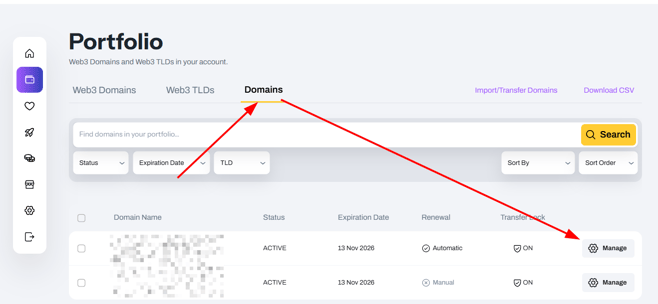
- Navigate to:
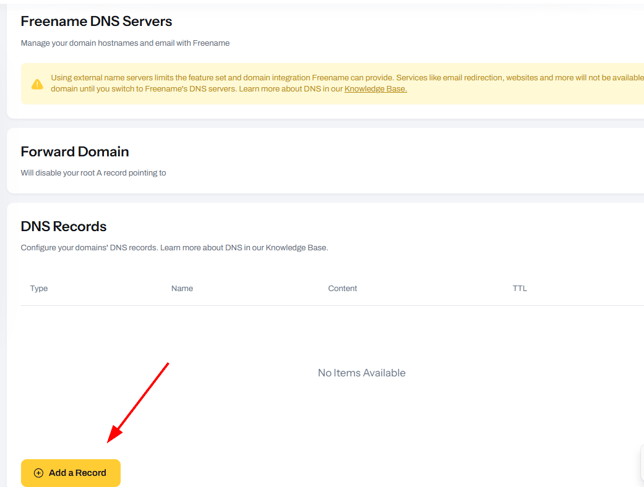
Portfolio → Domains → Manage → DNS - Add the A record:
- Type: A
- Name: @
- Value: 23.227.38.65
- TTL: 1 hour
- Add the CNAME record:
- Type: CNAME
- Name: www
- Value: shops.myshopify.com
- TTL: 1 hour
- Save changes.
⚠️ If you have any existing A or CNAME records that conflict, remove them before adding Shopify’s records.
4. Verify Your Domain in Shopify (TXT Record)
In some cases, Shopify requires domain verification using a TXT record.
4.1 Retrieve the Verification Value
- Open a new tab.
- Log in to your Shopify Admin.
- Go to:
Settings → Domains - Click the domain you’re verifying.
- Locate the New value shown.
- Click the copy icon.
4.2 Add the TXT Record in Freename
Return to your Freename DNS panel and add:
|
Type |
Name |
Value |
TTL |
|
TXT |
@ |
(value copied from Shopify) |
1 hour |
Save the record.
5. Complete Domain Connection in Shopify
After DNS propagation:
- Go back to Shopify Admin → Settings → Domains
- Click Verify connection
- Once verified, you can set the domain as Primary
6. DNS Propagation & Troubleshooting
Because DNS updates must propagate worldwide, you may experience delays.
To check propagation:
- Visit:
https://dnschecker.org - Select:
- A record (for root domain)
- CNAME record (for www)
- Enter your domain and search.
You should see:
- A record pointing to 23.227.38.65
- CNAME pointing to shops.myshopify.com
If propagation exceeds 72 hours:
- Confirm records were added correctly
- Ensure no conflicting A/CNAME records exist
- Confirm you are editing the correct domain
FAQ
1. How long does it take for my domain to connect to Shopify?
DNS propagation typically takes anywhere from a few minutes up to 48–72 hours. While many connections activate within a few hours, global DNS servers need time to update.
2. My domain isn’t loading my Shopify store yet. What could be wrong?
The most common reason is DNS propagation delay. However, you should also verify:
- The A record is set to 23.227.38.65
- The CNAME record for www is set to shops.myshopify.com
- There are no conflicting A or CNAME records
- You are editing the correct domain in Freename
3. How can I check if my DNS records have propagated?
You can use a public DNS tool:
- Go to https://dnschecker.org
- Select:
- A record (for your root domain)
- CNAME record (for www)
- Enter your domain and click search.
You should see:
- A record → 23.227.38.65
- CNAME → shops.myshopify.com
If results vary by location, propagation is still in progress.
4. Do I need to delete old DNS records before adding Shopify’s records?
Yes. If other A or CNAME records exist for the same host (@ or www), they may conflict with Shopify’s configuration. Remove conflicting records before saving the new ones.
5. Why is Shopify asking me to verify my domain with a TXT record?
Shopify sometimes requires domain ownership verification before activating the connection.
To complete this:
- Go to Shopify Admin → Settings → Domains
- Click your domain
- Copy the New value
- Add it as a TXT record in Freename
- Wait for propagation
- Click Verify connection in Shopify
6. What should I do if it still doesn’t work after 48 hours?
If more than 48 hours have passed:
- Double-check the A and CNAME values
- Confirm TTL is set to 1 hour (or default)
- Make sure you saved the DNS changes
- Verify that the correct domain is being edited
- Confirm the domain is properly added inside Shopify
If everything is configured correctly but the issue persists, you can contact us via Live Chat or e-mail at support@freename.com