
This guide explains how to point a domain registered with Freename to a website created on Google Sites. By completing this setup, visitors will be able to access your Google Site using your custom domain.
Before you begin, make sure that:
- Your website is already created and published on Google Sites.
- You have access to your Freename account and DNS management.
- You understand that DNS changes may take up to 72 hours to fully propagate.
Step 1 – Get the DNS Records from Google Sites
- Open Google Sites.
- You need to Configure your domain in the Google Sites platform.
- Go to Settings → Custom domains.
- Click Start setup and enter your domain name.
- Google will provide one or more DNS records
Keep this information available, as you will need it in the next steps.
Step 2 – Access DNS Management in Freename
- Log in to your Freename account.
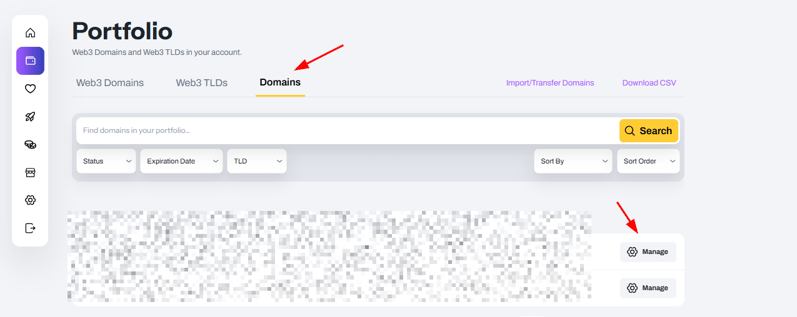
- Open your Portfolio → Domains → Select the domain you want to point to Google Sites and click Manage.
-
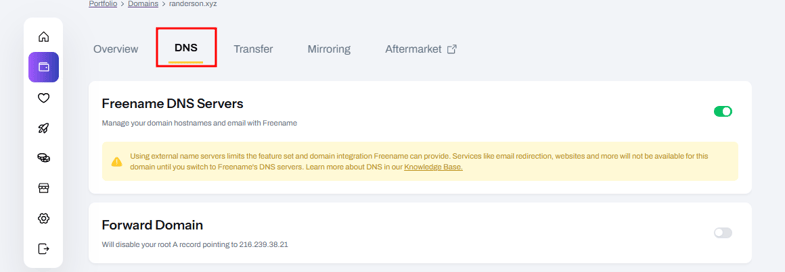
Access the DNS zone editor
.
Step 3 – Set Up A Records
Create the following A records in your domain’s DNS zone:
|
Record 1 |
Record 2 |
Record 3 |
Record 4 |
|
|
Name |
@ |
@ |
@ |
@ |
|
Content |
216.239.38.21 |
216.239.36.21 |
216.239.34.21 |
216.239.32.21 |
To add, go to DNS record and click Add a record.
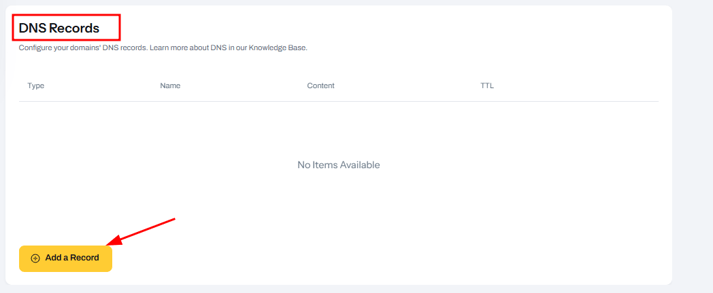
The result will look like this:
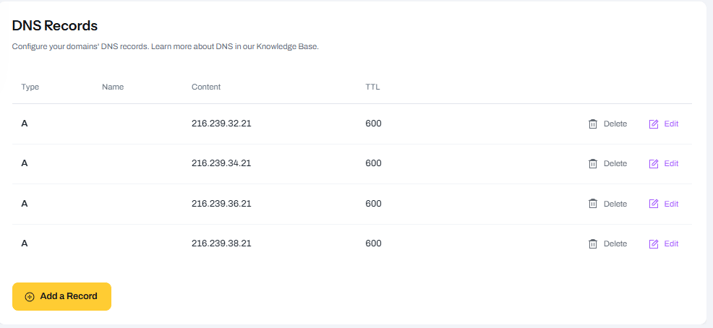
Make sure to delete any other A (@) records that may have been previously added so that only these four remain.
Step 4 – Set Up a CNAME Record
Delete all the current CNAME records (if any), and create a new CNAME with the following value:
- Name: www
- Content: ghs.googlehosted.com
It will look like this:
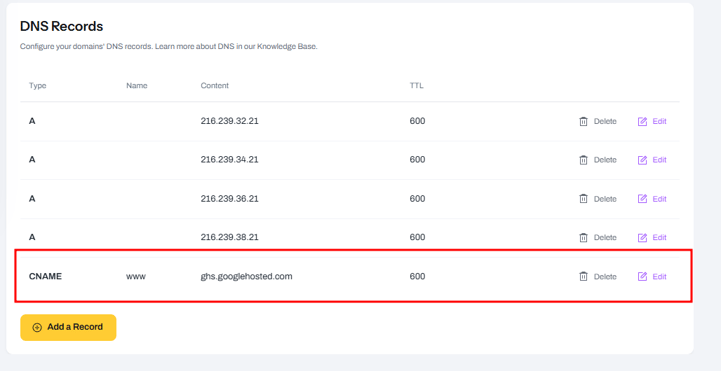
Once you do that, DNS propagation will start. This process can take up to 72 hours. During this time, it’s expected that your website won’t work, but give it some time, and it will get online soon.
Step 5 – Verify Your Domain
Once DNS propagation is over, verify your domain with Google. Go back to Google’s official guide and follow the steps in the section Verify ownership of your domain.
After successful verification, it might take a few hours for Google to recognize the changes and for your website to start working with the new domain.
NOTES:
-
The propagation of any record can take up to 72 hours to fully propagate, so after making the change, it is important to wait if your website is not working.
-
To check propagation, visit the website DnsChecker, enter your domain and the record you added, and check how it is going. If 72 hours have passed and you notice that propagation is "stuck," please contact our support team.
FAQ
-
Can I point a Freename Web2 domain to Google Sites?
Yes. You can point a Web2 domain registered with Freename to a website created on Google Sites so visitors can access your site using your custom domain.
-
What do I need before connecting my domain to Google Sites?
Your website must already be created and published on Google Sites, you must have access to your Freename account and DNS management, and you should be aware that DNS changes can take up to 72 hours to propagate.
-
Which DNS records are required to connect a domain to Google Sites?
You must add four A records for the root domain (@) with the IP addresses provided by Google, and one CNAME record for www pointing to ghs.googlehosted.com. Any existing A (@) or CNAME records should be removed before adding these.
-
Do I need to manage DNS through Google or Freename?
DNS management remains on Freename. You add and manage the required A and CNAME records directly in the Freename DNS zone editor.
-
Why do I need to verify my domain with Google Sites?
After DNS propagation is complete, domain verification is required so Google can confirm ownership and correctly associate your custom domain with your Google Site.
-
How long does it take for my Google Site to work with my domain?
DNS propagation can take up to 72 hours. After verification, it may take a few additional hours for Google to recognize the changes and for the website to become accessible.