
DNS controls how your domain connects to websites, email, and other internet services. On Freename, you can manage DNS in two main ways:
- Edit individual DNS records in your Freename dashboard (best when you only need a few changes, such as updating a website A record or adding TXT records for email and verification).
- Point your domain to external nameservers (best when a third-party DNS provider manages your entire zone, for example for managed DNS, traffic steering, failover, or automation).
Key Concepts: What You Need to Know First
- A record: maps a hostname to an IPv4 address (example: 203.0.113.10).
- AAAA record: maps a hostname to an IPv6 address (example: 2001:db8::10).
- CNAME record: creates an alias from one hostname to another (example: www → target.hosting.com). You cannot mix CNAME with other record types on the same hostname.
- MX record: directs email to mail servers. Hostnames and priorities must match your provider’s instructions.
- TXT record: general-purpose text used for SPF, DKIM, DMARC, site verification, and vendor-specific settings.
- NS record: defines authoritative nameservers for a zone (when you delegate DNS to a provider).
- TTL: time-to-live in seconds. Lower TTL updates faster; higher TTL can be more stable.
- Apex / root: the bare domain (example.com), often shown as @. A CNAME is typically not allowed at the apex.
- Propagation: time for cached DNS to refresh. On Freename, allow up to 72 hours for changes to fully propagate.
- DNSSEC: a security layer that signs DNS data. If you use DNSSEC with an external provider, it requires careful coordination during nameserver changes.
When to Edit DNS Records vs Change Nameservers
Edit DNS records in Freename
Use this when you only need simple updates and you do not need advanced DNS features.
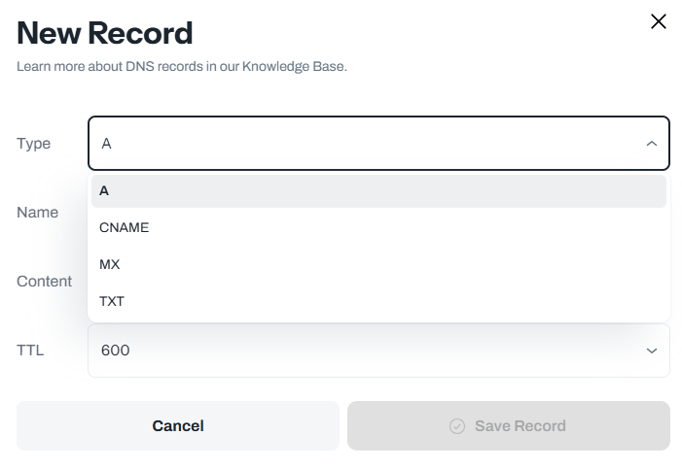
On Freename, you can edit these record types for Web2 domains:
- A
- CNAME
- MX
- TXT
Change nameservers (external DNS provider)
Use this when a third party manages your entire DNS zone or you need advanced features that require a managed DNS platform.
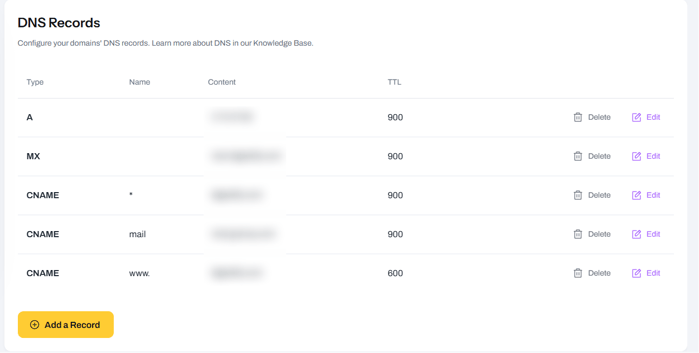
Option A: Change DNS Records in Freename (Single Domain)
- Open your Portfolio and find your Web2 domain.
- Open the domain management page and go to DNS / DNS Records.
- Add or update the supported record types (A, CNAME, MX, TXT).
- Save changes.
- Wait for propagation (up to 72 hours).
Common use cases
Website hosting
- A record: host @ → your IPv4 address (example: 203.0.113.10)
- CNAME: host www → your hosting target (or to @ if supported by your setup)
Email setup
- MX: add mail servers and priorities exactly as provided
- TXT: add SPF, DKIM, DMARC, and verification records as provided by your email provider
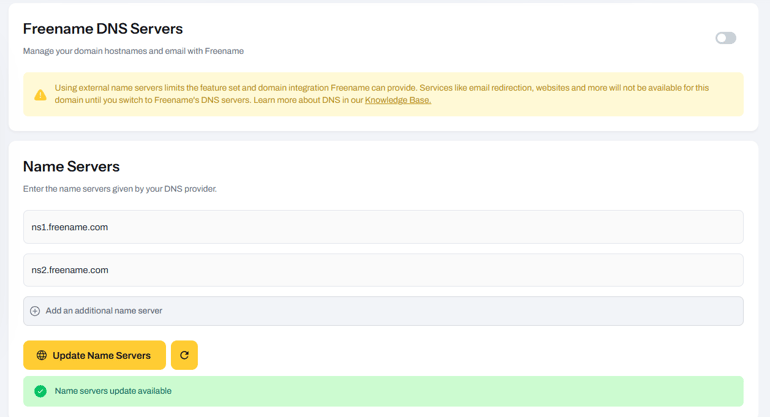
Option B: Change Nameservers (Single Domain)
If you want to use an external DNS provider, you must set custom nameservers for the domain.
- Open the domain management page.
- Go to Nameservers.
- Disable “Freename DNS Servers”.
- Enter your custom nameservers.
- To add more, click “Add an additional name server”.
- Click “Update name servers”.
- Wait for propagation (up to 72 hours).
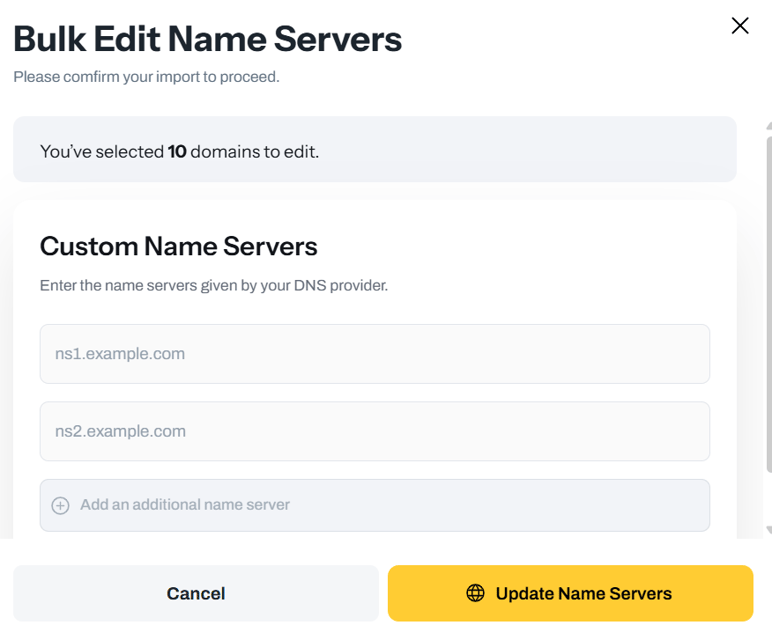
Change Nameservers in Bulk (Multiple Web2 Domains)
- Go to:
https://freename.com/dashboard/user/portfolio/?t=WEB2_SLD - At the bottom of the page, adjust results per page as you prefer.
- Select the Web2 domains you want to update.
- Click Actions → Edit name servers.
- Enter your custom nameservers.
- You can add more by clicking “Add an additional name server”.
- Click “Update name servers”.
- Wait for propagation (up to 72 hours).
Best Practices (Web2)
- Avoid conflicting records on the same hostname (for example, do not set CNAME and A on the same host).
- Keep only one SPF TXT record at the root and merge providers if needed (if your email provider requires SPF).
- Save old values before changing records so you can roll back quickly.
- For nameserver changes, ensure your external DNS provider already has the correct records (website and email) before switching.
Validation and Testing
You can verify DNS changes using standard tools such as dig or nslookup to check A, CNAME, MX, and TXT records. If different resolvers show different results, it is usually propagation/caching.
FAQ
-
Which DNS records can I edit on Freename for Web2 domains?
You can edit A, CNAME, MX, and TXT records. -
I need a record type that is not available in my Freename DNS editor. What should I do?
Use an external DNS provider by changing the domain’s nameservers. Disable “Freename DNS Servers”, set your custom nameservers, and click “Update name servers”. -
I updated DNS records, but I still don’t see the changes. Why?
DNS propagation can take time. Allow up to 72 hours and re-check later. -
How can I check the current propagation status?
You can use any DNS Lookup tool you find via search engines to check what different resolvers are returning for your domain. -
I changed nameservers, but the domain still uses the old DNS. Why?
Nameserver changes also require propagation and caching to expire. Allow up to 72 hours. -
My website or email stopped working after switching nameservers. What should I do?
This usually means the external DNS provider does not have the required records configured yet. Verify the zone at the external provider includes the correct records for your website and email services. -
After 72 hours, DNS still does not resolve correctly. What should I do?
Contact support@freename.com and include:
- Your domain name
- What you changed (records or nameservers)
- The last modified date/time for the change