

Connecting your Web2 domain to Google Workspace is the key step to activating professional email (Gmail) and other Google services on your own domain. This guide explains, in a clear and technical way, how to verify your domain and configure DNS records inside Freename so that Google Workspace can start handling your email.
1. Prerequisites
Before you start, you only need:
- An active, paid Google Workspace plan associated with your domain (e.g., yourdomain.com).
All other configuration will be done using Freename’s DNS panel and the Google Admin Console.
2. Verify Your Domain with Google Workspace
Google requires domain verification to confirm that you own the domain before enabling Gmail and other services.
2.1 Retrieve Your Verification Token in Google Workspace
- Sign in to the Google Admin Console:
https://admin.google.com - In the left menu, go to:
Home → Account → Domains → Manage Domains
Google will generate a TXT verification record, typically similar to:
Host: @
Type: TXT
Value: google-site-verification=xxxxxxxxxxxxxxxxxxxx
TTL: 300 or default
4 Copy the Value exactly as shown in Google Admin Console.
2.2 Add the TXT Record in Freename
- Log in to Freename’s panel.
- Navigate to:
Portfolio → Domains → Manage → DNS for the domain you are connecting to Google Workspace.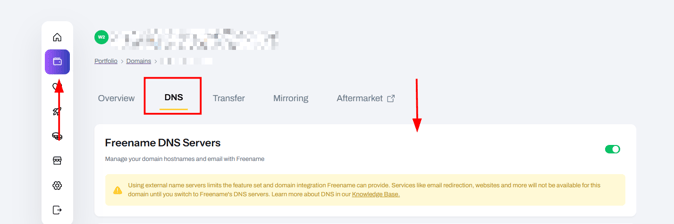
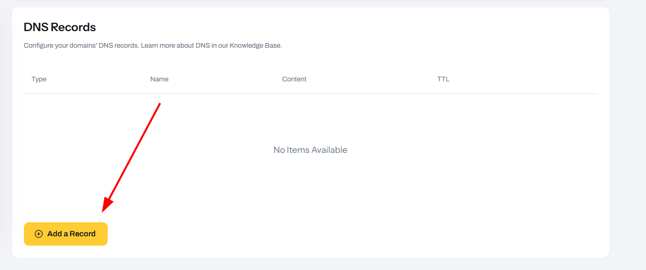
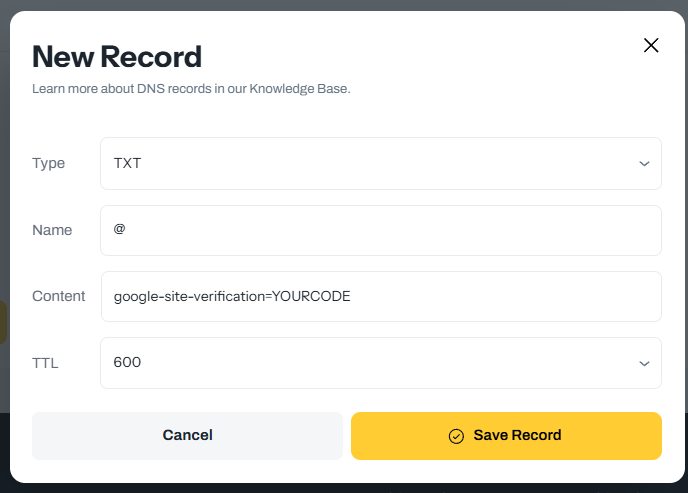
3 In the DNS section, create a new TXT record with:
Host / Name: @ (or leave empty if the interface uses the root by default)
Type: TXT
Value: the google-site-verification=... string provided by Google
TTL: 300 or keep the default value
Note: TXT record propagation is usually quick, but in some cases it may take up to a few hours depending on DNS caching.
2.3 Complete Domain Verification in Google Workspace
- Go back to the Google Admin Console.
- In the verification flow for your domain, click Verify.
- Google will check the TXT record you added in Freename’s DNS.
- Once the record is detected, the domain is marked as Verified, and you can proceed to configure email.
3. Configure Google Workspace MX Records (Enable Gmail)
After verifying ownership, you must configure MX (Mail Exchange) records so that all email for your domain is routed to Google’s mail servers.
3.1 Google Workspace MX Records
Add the following MX records for your domain:
|
Priority |
Mail Server |
|
1 |
ASPMX.L.GOOGLE.COM |
|
5 |
ALT1.ASPMX.L.GOOGLE.COM |
|
5 |
ALT2.ASPMX.L.GOOGLE.COM |
|
10 |
ALT3.ASPMX.L.GOOGLE.COM |
|
10 |
TTL: 300 (or the default DNS TTL provided in Freename’s panel).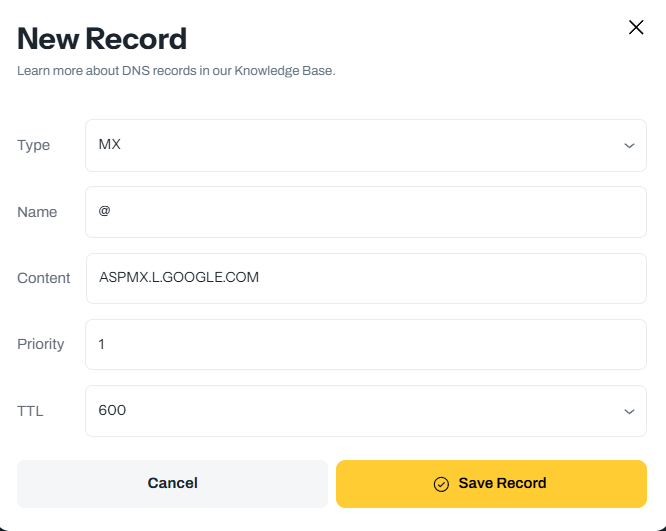
3.2 Add MX Records in Freename
- Log in to Freename’s panel.
- Navigate again to:
Portfolio → Domains → Manage → DNS for your domain. - In the DNS editor:
- Remove any existing MX records that belong to other mail providers (if present).
- Add each Google MX record one by one using:
- Host / Name: @ (root of the domain)
- Type: MX
- Priority: exactly as listed in the table (1, 5, 5, 10, 10)
- Value / Mail Server: e.g., ASPMX.L.GOOGLE.COM
- TTL: 300 or default
- Save your DNS changes.
Once propagation is complete, Gmail will start to receive email for your domain.
4. Common Issues & DNS Propagation Troubleshooting
Because DNS changes are not instant globally, most issues after setup are related to DNS propagation. Here is how to check and what to do.
4.1 Check MX and TXT Propagation Using DNSChecker
To verify whether your records have propagated worldwide:
- Go to:
https://dnschecker.org/ - Select the appropriate record type from the dropdown:
- For domain verification: choose TXT and check the google-site-verification record.
- For email routing: choose MX and check your domain (e.g., yourdomain.com).
- Enter your domain name and click Search.
- DNSChecker will show results from multiple locations worldwide.
You should see:
- For TXT records: the value containing your google-site-verification=....
- For MX records: all Google servers:
- ASPMX.L.GOOGLE.COM
- ALT1.ASPMX.L.GOOGLE.COM
- ALT2.ASPMX.L.GOOGLE.COM
- ALT3.ASPMX.L.GOOGLE.COM
- ALT4.ASPMX.L.GOOGLE.COM
4.2 Interpreting the Results
- If some locations show the correct records but others do not, DNS is still propagating. You may need to wait a bit longer.
- If no locations show the correct records, double-check:
- You added the records to the correct domain
- The host/name value is @ (or empty) and not a subdomain
- You saved the DNS changes in Freename’s panel
FAQ
-
Where do I find the Google Workspace domain verification token (TXT record)?
You can retrieve it in the Google Admin Console by going to Home → Account → Domains → Manage Domains, then adding/selecting your domain and choosing Verify. Google will provide a TXT record value likegoogle-site-verification=...that you must copy exactly. -
How do I add the Google verification TXT record in Freename DNS?
In Freename, go to Portfolio → Domains → Manage → DNS for the domain. Create a TXT record with Host/Name@(or leave empty if the root is default), paste the google-site-verification value, and set TTL to 300 (or keep the default), then save. -
Which MX records do I need to enable Gmail on my domain?
You must add Google Workspace MX records with these priorities and servers:
-
1 →
ASPMX.L.GOOGLE.COM -
5 →
ALT1.ASPMX.L.GOOGLE.COM -
5 →
ALT2.ASPMX.L.GOOGLE.COM -
10 →
ALT3.ASPMX.L.GOOGLE.COM -
10 →
ALT4.ASPMX.L.GOOGLE.COM
Use TTL 300 (or Freename default).
4 Do I need to remove existing MX records from another email provider?
Yes. If your domain already has MX records for a different provider, remove those before adding the Google MX records, otherwise email routing may not work correctly.
5 How can I check if my TXT and MX records have propagated correctly?
Use DNSChecker: select TXT to check the google-site-verification=... record, or MX to confirm the Google servers appear. If results differ by location, propagation is still in progress; if nothing appears anywhere, re-check the domain, the Host/Name (@ or empty root), and that you saved changes in Freename.